
How do you install drivers for the Leaf v3?
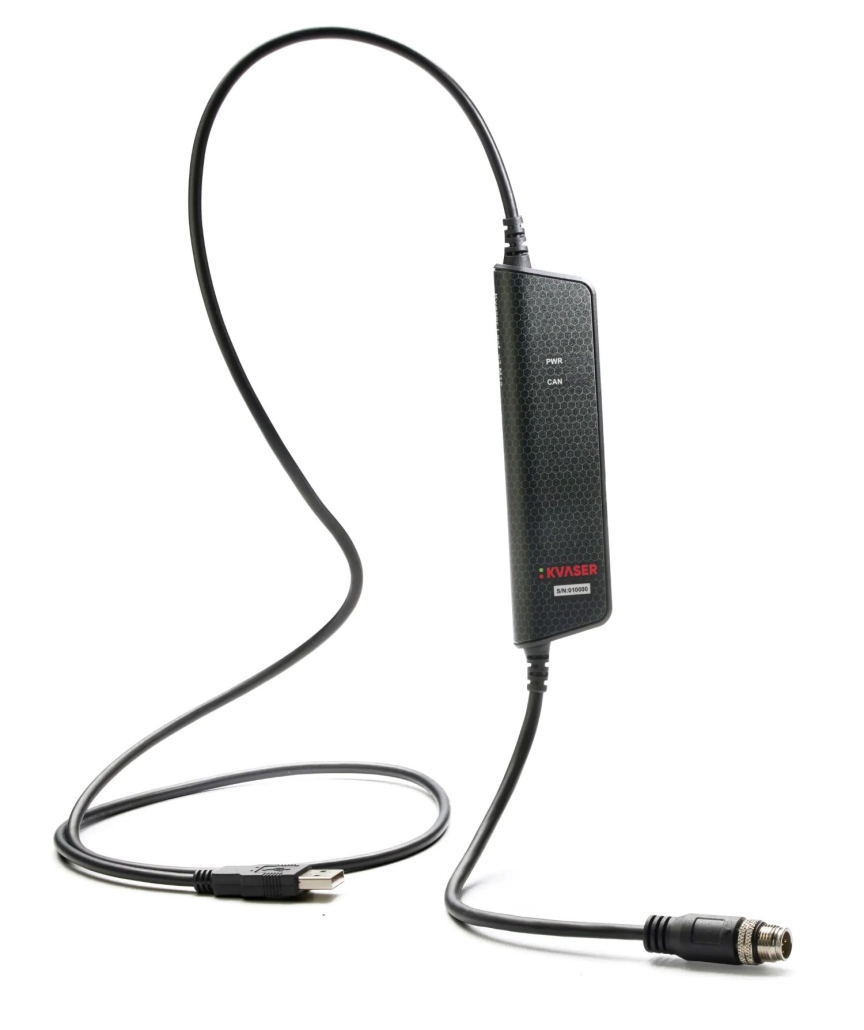
Installing drivers for the Kvaser Leaf v3 is a straightforward process that ensures your CAN interface functions correctly with your system. To install the drivers, download the latest Kvaser Driver Package from their official website, run the installer with administrator privileges, follow the on-screen prompts, and connect your Leaf v3 device after installation completes. For Linux systems, additional steps include installing the required dependencies and configuring permissions. A successful installation will show the device in your system’s device manager or equivalent tool.
What is the Kvaser Leaf v3 CAN interface?
The Kvaser Leaf v3 is a professional-grade USB-to-CAN interface device that enables communication between computers and CAN networks. This compact adapter serves as a critical bridge for engineers and technicians working with Controller Area Network (CAN) systems in automotive diagnostics, industrial automation, and embedded system development.
The Leaf v3 represents a significant advancement over previous generations, offering improved processing power, enhanced galvanic isolation, and support for the latest CAN protocols. It features a rugged design with a USB connector on one end and a 9-pin D-SUB connector for CAN connectivity on the other.
Technical specifications of the Leaf v3 include support for both CAN 2.0A/B and CAN FD protocols, data rates up to 8 Mbps, and compatibility with Windows and Linux operating systems. The device’s built-in galvanic isolation provides protection against ground loops and voltage differences, making it ideal for use in electrically noisy environments.
CAN-bus technology, first developed by Bosch in the 1980s, has become the standard communication protocol in automotive applications and is increasingly used in industrial settings due to its reliability and noise resistance. The Leaf v3 excels at providing a seamless interface to these networks, allowing for real-time monitoring, diagnostics, and data logging.
How do you install drivers for the Leaf v3?
Installing drivers for the Kvaser Leaf v3 requires following a specific sequence of steps to ensure proper functionality. The process differs slightly between Windows and Linux systems, but both are designed to be user-friendly.
For Windows systems:
- Before connecting your Leaf v3 device, visit the official Kvaser website and download the latest Kvaser Driver Package (CANlib SDK).
- Run the installer with administrator privileges.
- Follow the on-screen prompts, accepting the license agreement and selecting your preferred installation options.
- Complete the installation and restart your computer when prompted.
- After restart, connect your Leaf v3 device to an available USB port.
- Windows should automatically recognise the device and complete the driver installation.
- Verify installation by checking Device Manager – the Leaf v3 should appear under “Kvaser CAN Devices” without warning icons.
For Linux systems:
- Download the appropriate Linux driver package from Kvaser’s website.
- Install required dependencies using your distribution’s package manager.
- Extract the downloaded driver package and navigate to the extracted directory via terminal.
- Run the installation script with sudo privileges:
sudo ./canlib_install.sh - Follow any on-screen instructions to complete the installation.
- Configure udev rules to allow non-root access to the device (instructions are typically included in the README file).
- Connect the Leaf v3 device to a USB port and verify installation using the provided canlib utilities.
After installation, we recommend testing your setup with the Kvaser Diagnostic Tool included in the driver package to confirm proper communication with your CAN network.
What CAN protocols does the Leaf v3 support?
The Kvaser Leaf v3 supports a comprehensive range of CAN protocols, making it a versatile interface for various industrial and automotive applications. The device is built to accommodate both traditional and modern CAN implementations.
The Leaf v3 fully supports CAN FD (Flexible Data-rate), the enhanced version of the classic CAN protocol that allows for faster data rates and larger payload sizes. While standard CAN is limited to 8 bytes per message and speeds up to 1 Mbps, CAN FD can transmit up to 64 bytes per frame with data rates reaching 8 Mbps. This capability is particularly valuable for applications requiring higher bandwidth, such as modern automotive systems or industrial automation.
Additionally, the Leaf v3 is compatible with:
- CAN 2.0A (standard 11-bit identifiers)
- CAN 2.0B (extended 29-bit identifiers)
- Single-wire CAN (SAE J2411) with appropriate adapters
- CANopen protocols and higher-layer protocols built on CAN
The interface adheres to ISO 11898-2 standards for high-speed CAN networks, ensuring compatibility with most CAN implementations across industries. For developers working with CANopen systems, the Leaf v3 provides the necessary low-level communication capabilities to interact with CANopen devices, although additional software layers may be required for full CANopen protocol support.
The device’s driver package includes programming interfaces (APIs) that abstract the complexities of these protocols, allowing developers to focus on application-specific requirements rather than low-level protocol details.
How do you troubleshoot common Leaf v3 driver installation issues?
When encountering problems with Kvaser Leaf v3 driver installation, systematic troubleshooting approaches can quickly resolve most issues. Common challenges typically fall into several categories that can be addressed with specific solutions.
If your system fails to recognise the Leaf v3 device after installation, try these steps:
- USB connectivity issues: Try a different USB port, preferably directly on the motherboard rather than through a hub. Ensure the USB cable is not damaged.
- Driver conflicts: Uninstall any previous or competing CAN interface drivers, restart your computer, and reinstall the Kvaser drivers.
- Administrative privileges: Ensure you’re installing with administrator rights, as limited user accounts may cause incomplete installations.
- Outdated drivers: Download the latest driver package from the official website, as older versions may not be compatible with newer operating systems.
For Windows-specific issues:
- Check Device Manager for devices with warning icons. Right-click the Leaf v3 device and select “Update driver” or “Uninstall device” before reinstalling.
- Verify Windows version compatibility with your driver package.
- Temporarily disable antivirus software that might be blocking driver installation.
For Linux-specific issues:
- Check kernel compatibility with the driver package.
- Verify udev rules are correctly configured for non-root access.
- Run
dmesg | grep -i kvaserafter connecting the device to see if the kernel detects it. - Ensure all dependencies are correctly installed.
If you’re experiencing intermittent connectivity issues or error messages during operation, verify your termination resistors are properly configured in your CAN network. The Leaf v3 itself doesn’t include termination, so the network must provide the standard 120 Ohm resistance at both ends.
For persistent issues, consult our technical support resources or explore a detailed case study to see how others have solved similar challenges.
What are the key applications for the Kvaser Leaf v3?
The Kvaser Leaf v3 CAN interface finds extensive use across multiple industries due to its robust capabilities and reliable performance. Its versatility makes it suitable for a wide range of professional applications.
In automotive diagnostics, the Leaf v3 serves as an essential tool for technicians and engineers. It enables direct communication with vehicle Electronic Control Units (ECUs), allowing for comprehensive diagnostics, firmware updates, and performance monitoring. The device’s support for both standard CAN and CAN FD makes it compatible with both older vehicles and the latest models that utilize higher-speed CAN networks.
Industrial automation represents another significant application area. Here, the Leaf v3 facilitates data exchange between computers and CAN-enabled industrial equipment such as PLCs, sensors, and actuators. Its galvanic isolation feature is particularly valuable in factory environments, protecting connected computers from electrical noise and potential ground loops that could damage equipment or corrupt data.
For embedded systems development, the Leaf v3 provides a reliable interface for testing and debugging CAN-based communications in prototype systems. Engineers can monitor CAN traffic in real-time, simulate network conditions, and validate their designs before deployment.
Additional applications include:
- Research and development of CAN-based systems
- Educational and training environments for CAN protocol learning
- Long-term data logging of CAN network traffic
- Field service and maintenance of CAN-enabled equipment
- Quality assurance testing of CAN implementations
The Leaf v3’s compact form factor, combined with its robust features, makes it equally suitable for laboratory settings, production environments, and field deployments where reliable CAN connectivity is required.
Key takeaways about Kvaser Leaf v3 driver installation
Successfully installing and using Kvaser Leaf v3 drivers relies on understanding several essential points that ensure optimal performance of your CAN interface.
Always download the latest driver package directly from the official Kvaser website to ensure compatibility with current operating systems and access to the newest features and bug fixes. The installation process requires administrator privileges on Windows systems and proper configuration of permissions on Linux systems.
Remember that the Leaf v3 supports both standard CAN and CAN FD protocols, but your specific application may require configuring the appropriate mode through the driver software. The device does not include internal termination resistors, so proper network termination must be handled externally in your CAN setup.
For development purposes, the Kvaser CANlib SDK provides comprehensive programming interfaces for C, C++, C#, Python, and other languages, offering flexible integration options for custom applications. The included Kvaser Diagnostic Tools provide an excellent starting point for verifying your installation and exploring CAN communication basics.
When troubleshooting, remember that most issues relate to either driver installation problems, USB connectivity, or CAN network configuration rather than hardware failures. Following the systematic troubleshooting steps outlined earlier will resolve the majority of issues encountered.
For additional resources and support, consult the comprehensive documentation included with the driver package or reach out to technical support for specialised assistance with complex integration challenges.